
Installation issues can happen, we test rigorously to make sure that everything works smoothly, but occasionally system specific causes get in the way for some users. We take these reports seriously, following the steps in this document will provide us solid details to help diagnosis.
This article specifically focuses on the installation itself, either using the Software Manager, or the manual installer files.
Devious Machines Software Manager
If you experience troubles with the Software Manager while trying to install software, the best thing to do is to send us the log files.
You can also try and install manually by downloading the installer for the product from the downloads page on our website at the link below:
https://deviousmachines.com/downloads/
Where to find the log files.
1) Open the Devious Machines Software Manager
2) Go to the hamburger menu and select Show log.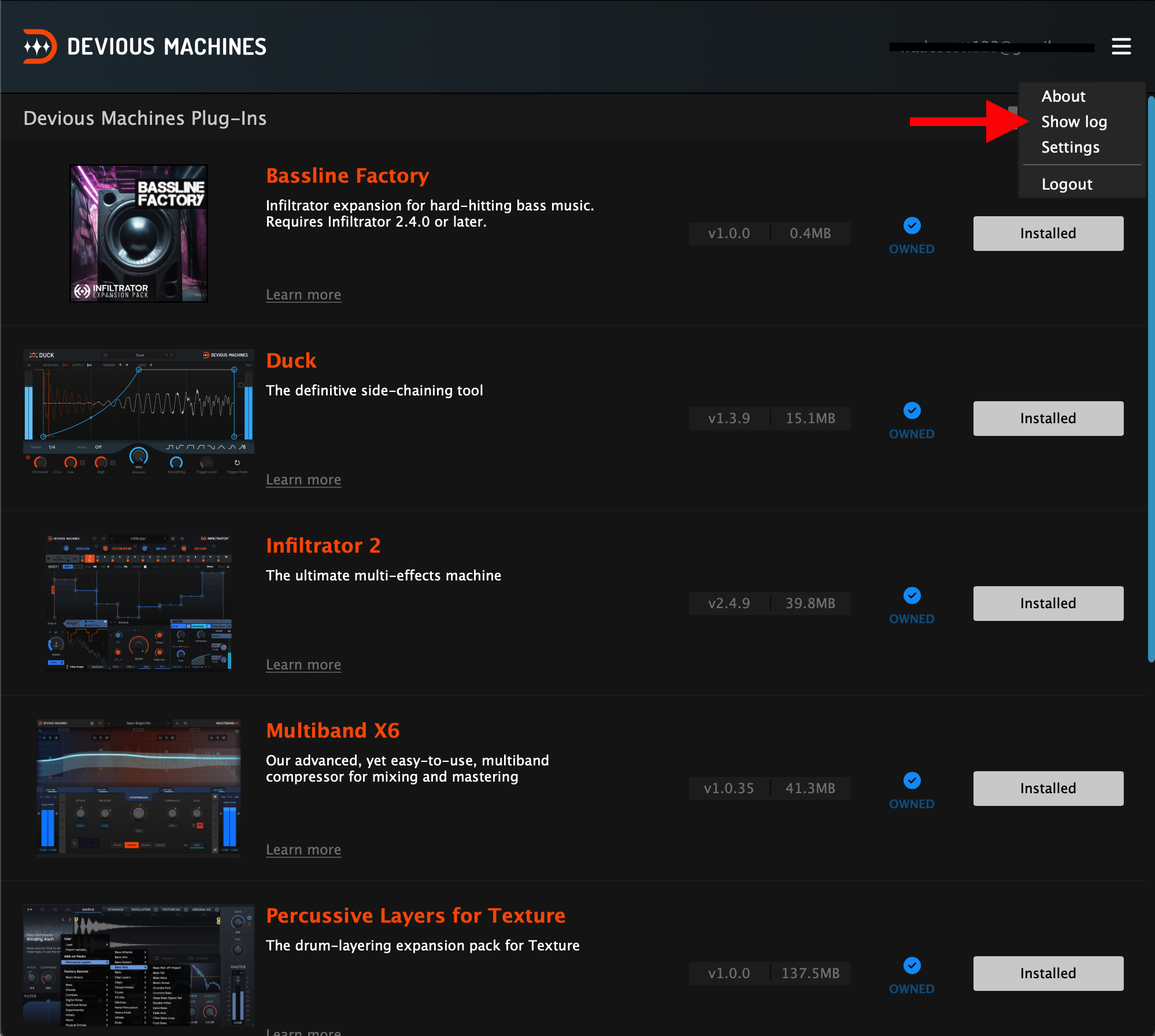
This will open the file location for the .log file. You should see the file called
Devious Machines Software Manager.log
3) Send an email to our support explaining what happened and attach the .log file to the email.
Our support email address is support@deviousmachines.com
Manual installers
If you run the manual installer file, and are still experiencing issues. The best thing to do is send us the manual installer log files.
How to get the log files from the installer
This is a little different from the Software Manager and involves the command line. If you have any difficulties, please contact our support and they will assist you.
1)
Go to the folder where you have the Install file for the product. This should be in your Downloads folder, unless you changed the location.
The installer should be called something along the lines of 'Install Infiltrator 2.4.9 Windows.exe' (Windows) or 'Install Infiltrator 2.4.9 Mac.pkg' (Mac).
Copy the file as a pathname.
WINDOWS
Right-click the file and selecting 'Copy as a path'.
MAC
option + right-click the file and select 'Copy "..." as a pathname'.
If you don't have the file anymore, please download it again from our website.
https://deviousmachines.com/downloads/
2) The next steps are different for each operating system.
| MAC | WINDOWS |
Open the program Terminal. Look at the following code. sudo installer -pkg ~/Downloads/TheInstaller.pkg -target / -verbose > ~/Desktop/install.log 2>&1 Replace "~/Downloads/TheInstaller.pkg" with the pathname you copied in step 2) and paste the updated code into Terminal. |
3)
Press enter.
The installer will be run in the background.
When the process is completed there will be a new file called 'install.log' in the same folder as the installer (in this case the Downloads folder).
Please send the 'install.log' file to our support along with an explanation of your troubles.