
The plugin not appearing in your DAW is quite dependent on your circumstances. Below are some troubleshooting steps that may help resolve the issue.
If it still isn’t working after trying these suggestions, please email us at support@deviousmachines.com confirming that you have read this article, and providing the additional information from the bottom of the article so we can further diagnose the problem.
Things to Try:
1) Check Installation Path: Ensure your plugin has installed correctly to your plugins folder.
On Mac:
VST2: /Library/Audio/Plug-ins/VST
VST3: /Library/Audio/Plug-ins/VST3
AU: /Library/Audio/Plug-Ins/Components/
On PC:
VST2: Check the installer or registry.
VST3: C:\Program Files\Common Files\VST3
If the file is not there try the following:
(Mac Only) Open the Devious Machines Software Manager and go to the setting menu. Select 'Fix Permissions'. Redownload.
And/Or
Attempt to download using the manual installer, which you can find by selecting your product on the bottom of the downloads page.
2) Rescan Plugins in Your DAW:
Most DAWs have an option to rescan installed plugins, usually this runs automatically but you can scan manually too. Check the user manual for your DAW on how to perform a manual scan.
3) Reinstall Software:
Perform a fresh install using either the Devious Machines Software Manager or manual installer (both can be downloaded from this page).
4) Update Your DAW and Plugin:
Check that you have installed the latest version of your Devious Machines plugin, and check that your DAW is updated to the latest version.
Open the About dialog to see what version you have currently installed.
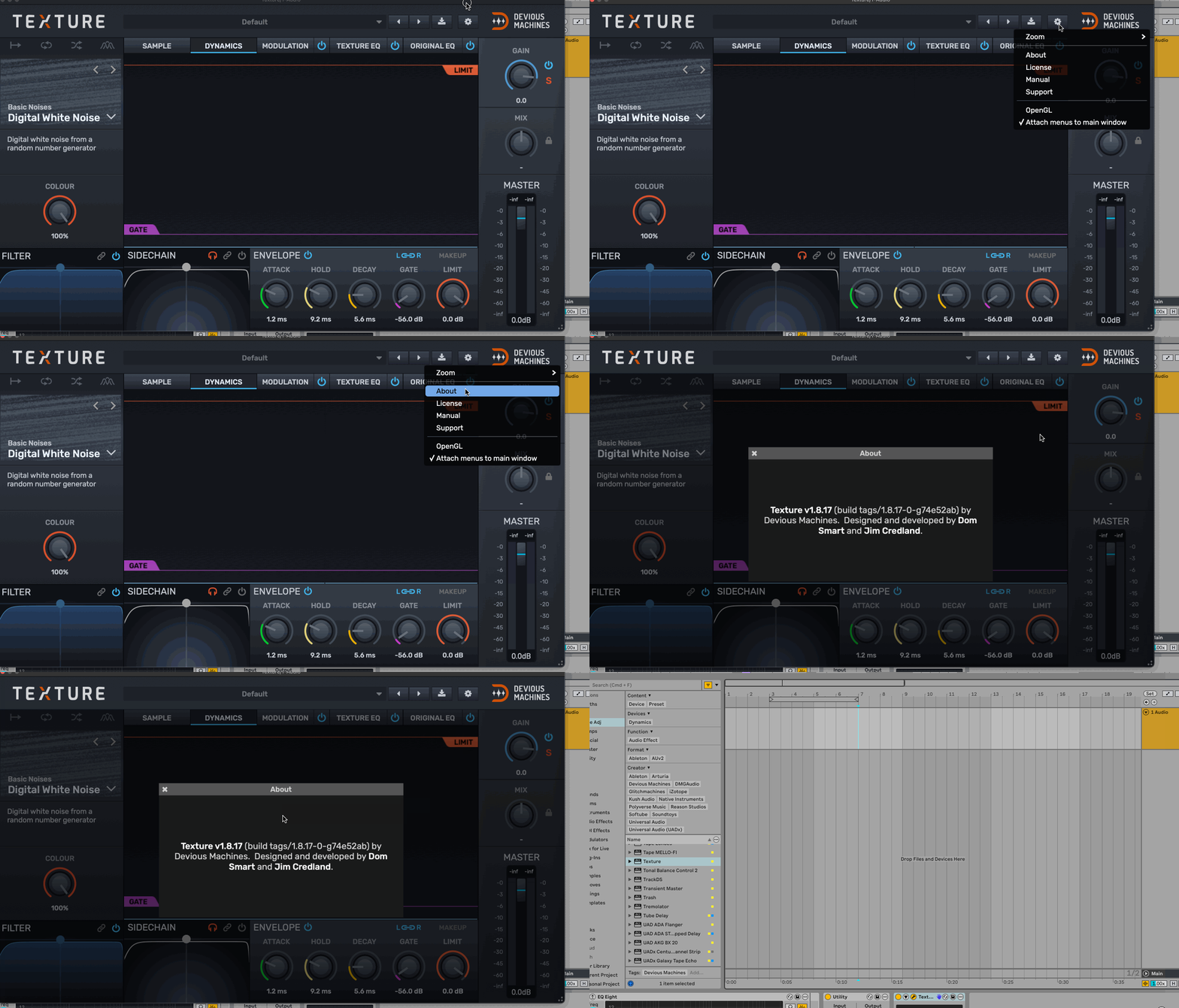
All latest versions can be downloaded from this page:
https://deviousmachines.com/downloads/
5) Disable Conflicting Software:
Temporarily disable antivirus or firewall programs that might be blocking access to the plugin.
6) Restart Your Computer:
A simple reboot can sometimes resolve software conflicts.
After Trying These Steps:
If the issue persists, please email us at support@deviousmachines.com and include the following information:
1) The DAW you are using (try and open the plugin in a different DAW, tell us if the plugin appears there or not).
2) Your operating system (Mac or Windows) and its version.
4) What plugin format you are using (VST, AU, VST3).
5) Confirmation that the plugin is installed to your disk according to Step 1.