
How to Remove a Devious Machines Plugin
Windows
- Open Settings > Apps > Installed Apps (Windows 11) or Control Panel > Programs and Features (Windows 10)
- Find the plugin name (e.g. "Infiltrator") in the list
- Click Uninstall and follow the prompts
This removes the plugin files, factory presets, and settings.
If you also want to remove any user presets you have saved, open File Explorer and navigate to:
C:\ProgramData\DeviousMachines\PluginName\
The ProgramData folder is hidden by default. Type the path directly into the File Explorer address bar to navigate there.
macOS
There is no uninstaller on macOS. Apple didn't provide a standard way to do this. You'll need to find and delete the plugin files manually.
How to delete each file
For each item listed below:
- Open Finder
- From the menu bar, click Go > Go to Folder… (or press Cmd+Shift+G)
- Paste the folder path from the table below and press Return
- Find the plugin file in the Finder window that opens
- Right-click it and choose Move to Trash
- You may be asked to enter your Mac password — this is normal, as these are system-level folders
Plugin files
| Format | Folder to open | File to delete |
|---|---|---|
| VST | /Library/Audio/Plug-Ins/VST/ | PluginName.vst |
| VST3 | /Library/Audio/Plug-Ins/VST3/ | PluginName.vst3 |
| Audio Unit | /Library/Audio/Plug-Ins/Components/ | PluginName.component |
| AAX (Pro Tools) | /Library/Application Support/Avid/Audio/Plug-Ins/ | PluginName.aaxplugin |
Presets and settings
| Data | Folder to open | What to delete |
|---|---|---|
| Factory presets | /Library/Application Support/DeviousMachines/ | The PluginName folder |
| User presets and settings | ~/Library/Application Support/DeviousMachines/ | The PluginName folder |
The ~/Library folder (in your home directory) is hidden by default, so you won't see it in Finder normally. Using Go to Folder (Cmd+Shift+G) is the easiest way to get there. Select Finder, press Cmd+Shift+G, and copy the path from the Folder to open column above (see image below).
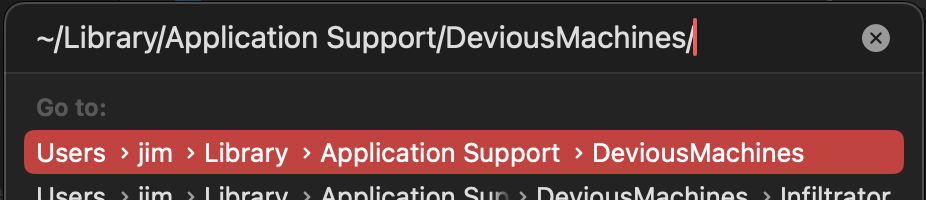
If you have saved your own presets, they will be inside these folders. Back them up first if you want to keep them.
After removal
Restart your DAW after removing plugin files. Most DAWs rescan their plugin folders on startup and will remove the plugin from their list automatically. If the plugin still appears, check your DAW's documentation for how to force a plugin rescan.